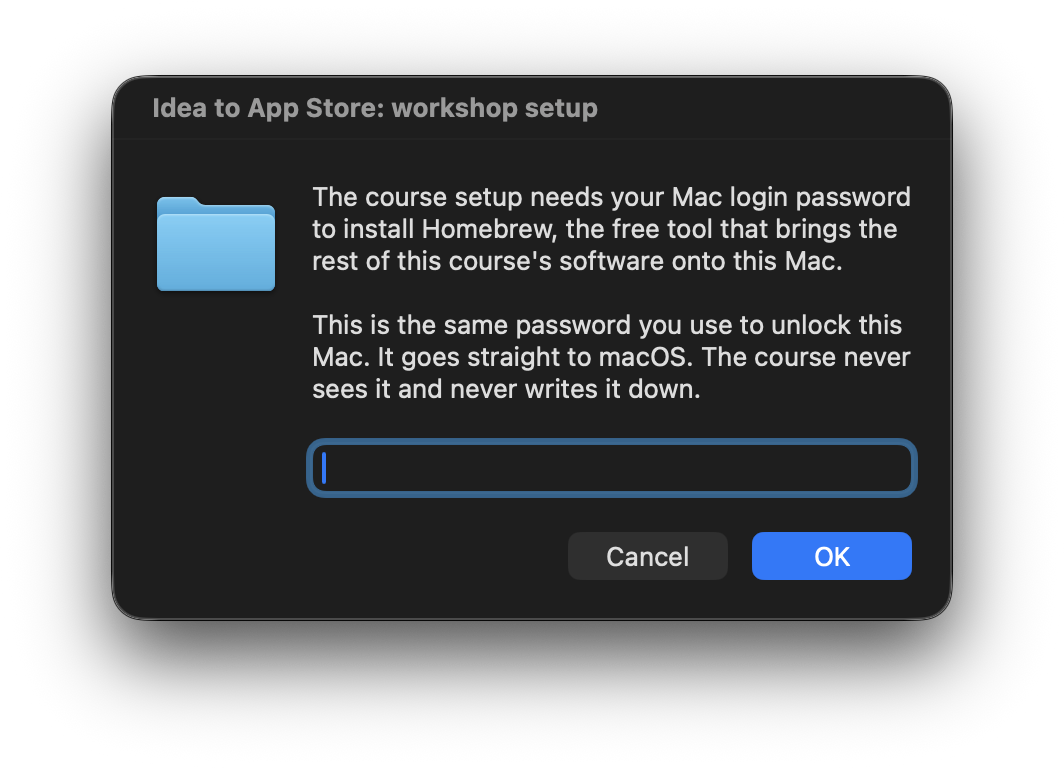
The password prompt during the Homebrew install
What this gets you: past the one moment in milestone 01 where the Mac stops and waits for your password. You are sent here from: milestone 01.
If you are reading this before you buy: the script this page describes runs in your first working session, from the course folder. This page shows the one moment in that session that asks something of you, so you know it when you see it.
Before you start
- What Homebrew is. Homebrew installs software on a Mac the way the App Store installs apps. The difference is the kind of software: small tools that have no windows and no buttons, and are used by typing their names rather than by clicking. The course needs a handful of those that do not come with macOS, and Homebrew is how they get on the machine. Claude does all the typing.
- What the course does with it. One file does the installing:
scripts/bootstrap.sh. A script like that one is a saved list of commands that runs top to bottom. Claude runs it and reads you the results. Your only job in the whole sequence is typing a password once. - Which password. The one you use to unlock this Mac and to approve new software on it. Your Mac login password. It is not your Apple account password, and it has nothing to do with your Claude account.
- Where it gets asked for. A small window appears in the middle of the screen with a box to type into, the same one macOS puts up whenever a piece of software wants permission to change something shared. If you took the terminal route in Day Zero's appendix, the request arrives as a line of text inside the terminal instead, and the section near the bottom of this page covers that.
- Whose account. The account you are logged into has to be allowed to install software on this Mac. If this is the only account on the machine, it almost certainly is.
- Cost: nothing. Homebrew and everything it installs here are free.
- Time: the typing takes five seconds. The install around it runs for a few minutes.
What the install actually is
Nothing here is hidden, so here is the line Homebrew publishes on its own front page:
/bin/bash -c "$(curl -fsSL https://raw.githubusercontent.com/Homebrew/install/HEAD/install.sh)"The course's setup script runs that same line with one extra word in front:
NONINTERACTIVE=1 /bin/bash -c "$(curl -fsSL https://raw.githubusercontent.com/Homebrew/install/HEAD/install.sh)"That first word tells the installer not to stop and wait for a keypress, because Claude is driving and answers the routine questions for you. Homebrew describes the script as a careful one: it prints exactly what it is going to do before it does it. The password is the one thing that stays yours.
Homebrew needs macOS Sonoma (version 14) or newer, and it needs Apple's Command Line Tools, which are a small set of build tools that come from Apple rather than from Homebrew. If those tools are missing, expect the install to fetch them first, which adds several minutes.
Why it wants a password
Homebrew installs itself into a folder that belongs to the whole Mac rather
than to you personally. On a newer Mac with an Apple chip, which Apple calls
Apple silicon, that folder is /opt/homebrew. On an older Mac with an Intel
chip it is /usr/local. macOS guards shared folders like those, and the guard
is the password prompt. It is macOS asking you, in person, to approve a change
outside your own home folder.
That is also why it happens once. Homebrew puts itself somewhere it can then
work without asking again, so later commands like brew install git need no
password at all.
Why it is safe
- The prompt comes from macOS itself. The password goes to macOS and stops there. Homebrew's servers never see it. Anthropic never sees it. Nothing transmits it anywhere.
- Claude never asks you for it. It never repeats it back. It never writes it into a file. That rule holds for every password and key in this course.
- You can read the script before you run it. The address above is a plain web address. Open it in a browser and the whole thing is there in the open.
- Getting it wrong costs nothing. A wrong password prints one line and asks again.
Steps
- Stay at the Mac while the bootstrap script runs. At some point a small window appears asking for a password, titled Idea to App Store: workshop setup.
- Read the words in it before you type anything. It says that the course setup needs your Mac login password to install Homebrew, and that the password goes straight to macOS. That is the window to answer. A password window saying anything else is not this step, and it should be read out to Claude rather than answered.
-
Answer the box, in two moves:
- Click into the box.
- Type your Mac login password. Dots appear as you type, one per character, which is all anyone can see.
-
Click the button that confirms it.
-
Tell Claude that you typed it, then leave the Mac alone while the install runs.
You have five minutes to answer before the window gives up on its own. If it does give up, nothing on the Mac has changed, and Claude runs the script again.
Closing or cancelling that window does the same thing: it stops the install and changes nothing. Say so, and Claude runs the script again.
On the terminal route
Day Zero's appendix describes a way of running Claude Code by typing into a terminal window instead of using the app. On that route this same moment looks different, and it is the version that alarms people, so here it is in full.
- Watch the terminal while the bootstrap script runs. At some point the
scrolling stops and a line appears asking for a password. It usually reads
Password:and nothing else. - Type your Mac login password.
Nothing will appear as you type. No dots, no stars, no moving cursor. The line sits there looking exactly as it did before you touched the keyboard. That is how password prompts in a terminal have always worked, and it is the single most common reason people think their Mac has frozen at this moment. Type it at your normal speed. The terminal is taking in every key you press and showing none of them, which is how it keeps a password off the screen, and it reads the whole password when you press Return.
-
Press Return.
-
If the terminal answers
Sorry, try again., type the password once more and press Return again. Three wrong tries is harmless. The prompt comes back and the install continues from where it stopped. -
Tell Claude that you typed it, and leave the window alone while the install runs.
If the terminal is waiting for something that is not a password, it says so. Read the line out to Claude rather than typing into it.
What it looks like when it worked
The install carries on by itself. Lines mentioning downloading and installing go past for a few minutes, then the bootstrap script prints its PASS and FAIL table and Claude reads it out to you.
Claude confirms the result with a command of its own, and the answer is a version number:
brew --versionNothing on your screen ever shows the password, before or after.
If it looks different
The exact wording macOS puts in that window is up to macOS and it changes between versions. The shape is what matters: something stops, something asks for a password, and it is asking so that software can be installed. If that is what you are looking at, type the Mac login password.
A line inside a terminal asking for a password, rather than a window of its own, means you are on the terminal route above. Same password, same answer, and your typing stays invisible there.
If what appears asks for something that is not a password, read it out to Claude rather than typing into it.
If it goes wrong
- Claude seems to be waiting and you cannot see any password window. Symptom: the install goes quiet and nothing is on screen to answer. Cause: the window opened behind the Claude window instead of in front of it. Fix: move the Claude window, or look along the Dock at the bottom of the screen for a second icon bouncing or marked as wanting attention, and click it to bring the window forward. Do this within five minutes; after that the window gives up and the script has to be run again.
- The script says macOS did not accept that. Symptom: a line saying Homebrew was not installed and nothing on this Mac changed. Cause: a mistyped password, a window closed instead of answered, or an account not allowed to install software on this Mac. Fix: exactly what it says. Nothing changed, so ask Claude to run the script again and answer the window this time.
- You typed and nothing happened, so you typed it again. Symptom: several attempts, a growing suspicion the keyboard is dead. Cause: the invisible typing on the terminal route above. Fix: press Return once, then wait a beat. If it says try again, type it once cleanly and press Return.
Sorry, try again.three times in a row. Symptom: the password is refused repeatedly. Cause: usually a caps lock key, or the Apple account password typed by mistake instead of the Mac login password. Fix: check caps lock, and confirm the password by locking the screen and unlocking it. Seeerrors.md#sorry-try-again-at-the-password-prompt.brew: command not foundafter the install finished. Symptom: the install ends happily, then the very next command saysbrewdoes not exist. Cause: Homebrew installs to a different folder on Apple silicon Macs than on Intel ones, and whatever runs the commands has to be told where to look. Fix: Claude adds the line Homebrew's own installer printed to the small settings file that gets read each time a command session starts, then runs the bootstrap script again in a fresh one. There is nothing for you to type. Details inerrors.md#brew-command-not-found-after-install.- The install stops asking for Apple's Command Line Tools. Symptom: a message about developer tools, or a macOS window offering to install them. Cause: Homebrew needs Apple's build tools and this Mac does not have them yet. Fix: let it install them and wait. This is a separate download from Apple and it takes its own few minutes. It does not replace Xcode, which milestone 01 installs from the App Store.
- You do not know your Mac login password. Symptom: no password to type. Cause: it happens, especially on a Mac that logs in with a fingerprint or a watch. Fix: reset it in System Settings under your user account before continuing. This one is not something Claude can do for you or should ever ask you to share.
Checked against: brew.sh and docs.brew.sh/Installation.
Last verified: 2026-08-29. Companies move their buttons. When a screen does not match this page, trust what the step accomplishes and tell Claude what you see.